How to use
Easy BRG is not an automated booking service. Keep the Chrome extension on and check rates as you normally would. It uses Automatic save on supported sites, Manual entry in the Chrome extension popup, and website entry for Service restricted sites. From install to your first comparison takes about 5 minutes.
Install the Chrome extension
Install Easy BRG
About 1 minute on desktop Chrome
It cannot be installed on mobile. Please continue on desktop Chrome.
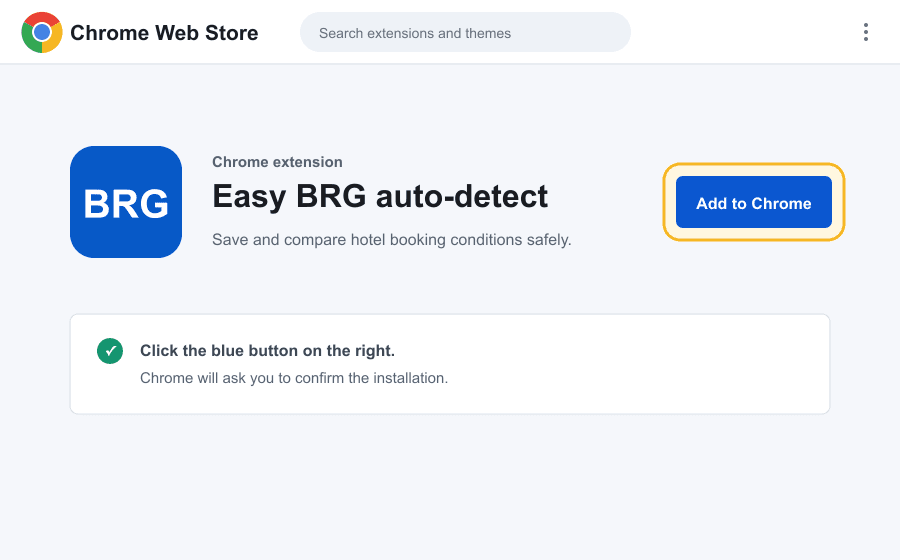
Add to Chrome
On the Easy BRG Web Store page, click the blue Add to Chrome button.
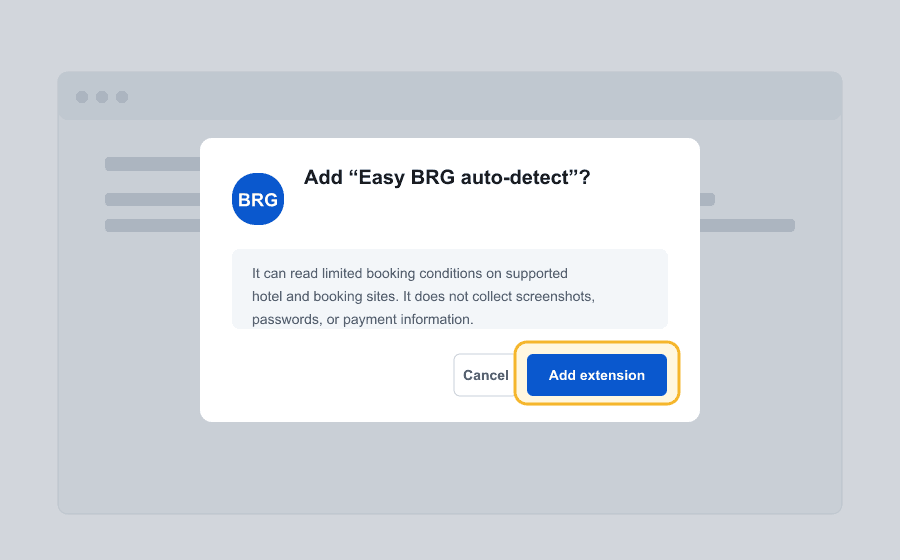
Confirm the install
Read the permissions in the dialog and click Add extension.
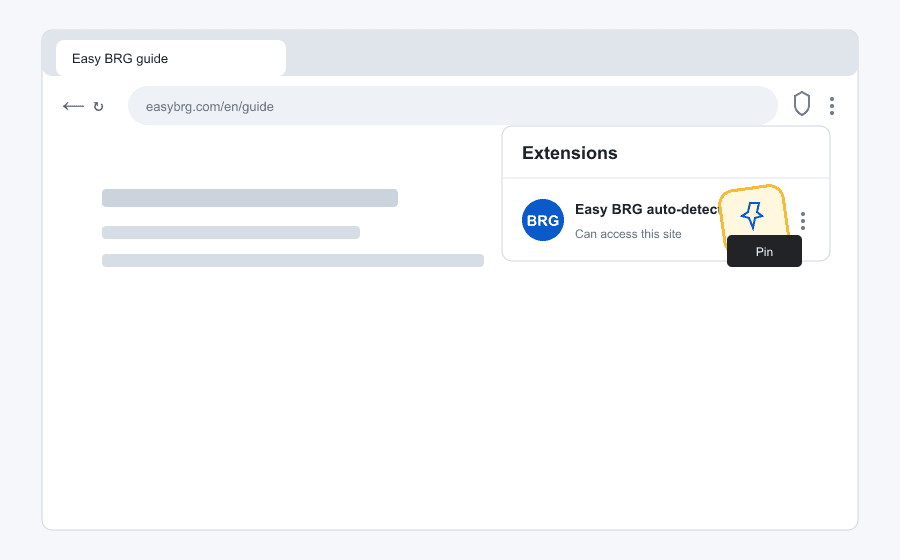
Pin to the toolbar
Open the puzzle-piece menu and click the pin next to Easy BRG.
Sign in with your Google account
Sign in with the Sign in button at the top right of this site and the Chrome extension signs in automatically too (signing in directly from the Chrome extension popup works the same). You need to be signed in for the rates you check to be saved.
How to use Automatic save sites
Each site uses Automatic save, Manual entry, or Service restricted. Check which one on Supported sites, or open the site and click the Chrome extension icon to see it right away.
Start on the hotel’s official site: choose your hotel, dates, guests, and room, then proceed to the final checkout screen. You do not need to press the pay button. When the total appears, the Chrome extension first shows ‘Checking the hotel and booking conditions’ and then uses Automatic save for the base rate.
Once the rate is saved, the card shows up to 3 recommended comparison sites right away. Open the site you want and proceed to the final checkout screen again with the same hotel, dates, guests, and room. More sites are available through Go to comparison. On Automatic save sites, Automatic save stores and compares candidate rates. When one is cheaper, the Chrome extension icon shows a badge like -10%. If a rate cannot be read, a ? badge appears with the reason.
Nothing is saved on room lists or detail pages. Always proceed to the final checkout screen — where you enter guest and payment details — until the total is shown. Checking the official site first makes it easier to tell the base rate and candidates apart.
How to use Manual entry sites
On a Manual entry site, the page title and content are not read. Check the desired conditions and total on the site, click the Chrome extension icon, choose the recent comparison and site, enter the amount and currency, then confirm that the hotel, dates, guests, and rooms match before saving.
How to use Service restricted sites
On a Service restricted site, the Chrome extension does not read or save the current page title, content, or booking details. Enter the checked rate on the Easy BRG website, not in the Chrome extension.
The existing hotel stays read-only, while you can edit check-in, check-out, adults, children, and rooms. Enter the provider, total, currency, optional room, and meal, cancellation, payment, and tax conditions. If cancellation is free, you can add an optional free-cancellation deadline in the hotel's local time; it cannot be later than check-in.
Review the results on the comparison page
Once rates are collected, the comparison page shows, at a glance, whether each condition (dates, guests, cancellation, meals, taxes) matches and the BRG likelihood grade. You can also switch the verification level (Standard/Strict) there.
(Optional) File a BRG claim — Pro
When you find a ‘BRG likely’ candidate, track it as a claim, get a draft application and checklist, and submit it through the hotel’s official form. Deadlines and conditions differ by chain — see the BRG rules by chain.